
Use your own proxies in Chrome
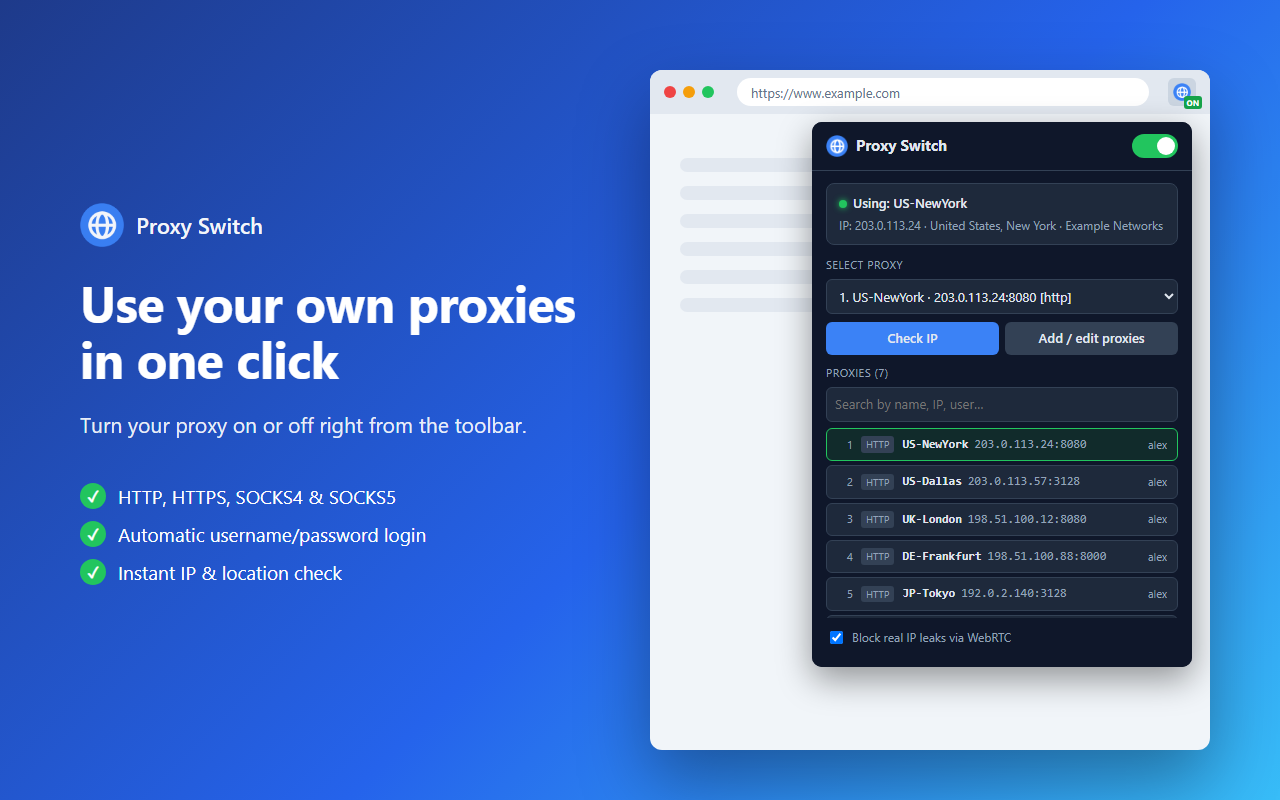
Paste your proxy list once, then switch between proxies with a single click. Automatic login, WebRTC leak protection and a built-in IP check.
Features
How to use
- Click the Proxy Switch icon in the Chrome toolbar.
- Click Add / edit proxies, paste your list (one proxy per line) and click Save list.
- Select a proxy from the dropdown or the list.
- Click Check IP to confirm your new IP address.
- To go back to your normal connection, turn the switch off.
Supported formats:
ip:portip:port:user:passuser:pass@ip:porthttp://,https://,socks4://orsocks5://followed byip:port- With a name:
US-1 | ip:port:user:pass
Proxy Switch does not provide proxies. You need your own proxy servers from a provider of your choice.
Support & FAQ
“Check IP” says the connection failed
The proxy is offline, or the username/password is wrong. Check the details with your provider, or select another proxy. Turn the switch off to go back to your normal connection.
My SOCKS5 proxy with a password does not work
Chrome does not support username/password login for SOCKS5 proxies. Use your provider’s HTTP port for the same proxy, or a SOCKS5 proxy that allows your IP address without a password.
Chrome shows a login box for my proxy
Open the list with Add / edit proxies and make sure the line includes the username and password, for example ip:port:user:pass, then click Save list.
Does the extension see my browsing?
No. Your proxy list stays in your browser, and the extension does not read page content or record history. See the Privacy Policy.
How do I remove all my data?
Remove the extension from chrome://extensions. This deletes your proxy list and settings.
Still need help? Email [email protected] with the subject “Proxy Switch support”.